Android Unlock with Time Lock: A Complete Guide
Introduction
Android smartphones come with several security features designed to protect personal information and prevent unauthorized access. One of these features is a time-based lock, which may delay access to a device or an application for a specific period. Understanding how Android unlock with time lock works can help users manage their devices more effectively and avoid unnecessary frustration.
Whether you have forgotten your screen lock, encountered a temporary security delay, or want to understand time-based locking features, this guide explains the possible causes, available solutions, and important precautions.
What Is Android Unlock with Time Lock?
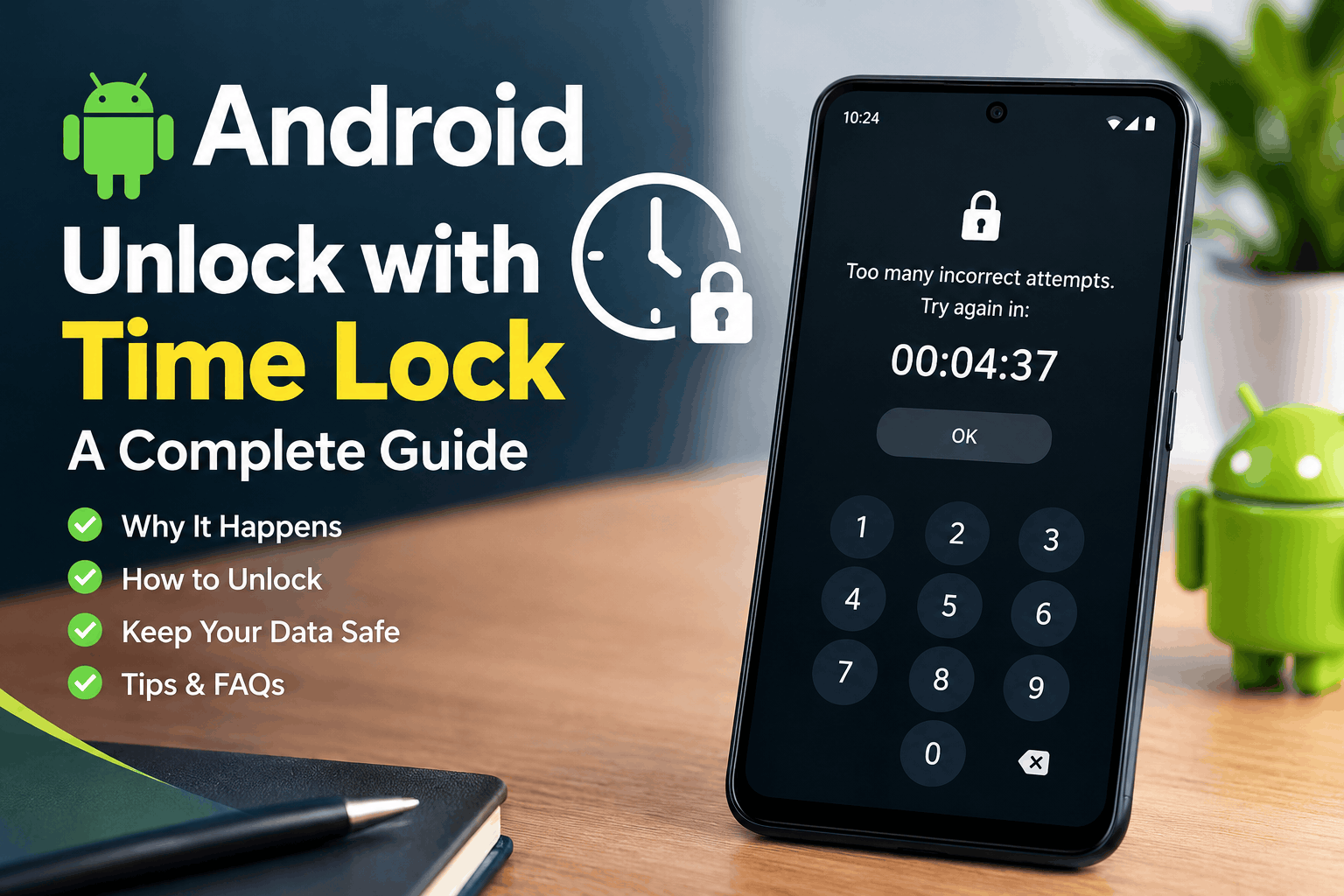
Android unlock with time lock refers to situations where a smartphone or application requires users to wait for a certain amount of time before they can try unlocking it again. This feature may appear after several incorrect PIN, password, or pattern attempts.
Depending on the device and Android version, the screen may display a message asking you to wait before trying again. Some applications also use time-based restrictions to protect accounts and sensitive information.
The waiting period helps prevent repeated guessing attempts and improves device security. However, it can become inconvenient if you accidentally enter the wrong password several times.
Why Does an Android Phone Have a Time Lock?
There are several reasons why an Android smartphone might temporarily restrict access.
1. Multiple Incorrect Password Attempts
Entering the wrong PIN, password, or pattern repeatedly can trigger a temporary lockout. The waiting period may increase depending on the device’s security system.
2. Security Protection
Android devices use security mechanisms to protect personal information. A temporary delay can make it harder for someone to guess your screen lock through repeated attempts.
3. Device Management Policies
Some smartphones are managed by workplaces, schools, or organizations. Administrators may configure security policies that require specific unlocking procedures or impose restrictions.
4. Application Lock Features
Certain Android applications include their own security locks. Banking applications, password managers, and privacy tools may temporarily restrict access after unsuccessful login attempts.
It is important to identify whether the time lock belongs to the phone itself or to a specific application before choosing a solution.
How to Unlock an Android Phone After a Time Lock
If your Android phone displays a time-lock message, follow these steps to regain access safely.
Step 1: Wait for the Timer to Finish
The simplest solution is to wait until the displayed countdown ends. Avoid repeatedly entering passwords while the device is locked, as additional attempts may extend the restriction.
Step 2: Enter the Correct Screen Lock
After the waiting period finishes, carefully enter your correct PIN, password, or pattern. Make sure you remember the screen lock associated with the device.
If you are unsure about the password, avoid random guesses that could trigger another lockout.
Step 3: Restart the Phone if Appropriate
If the countdown has finished but the phone still appears unresponsive, a normal restart may help resolve a temporary software issue.
However, restarting does not necessarily remove a security timer. Some restrictions remain active after the phone restarts.
Step 4: Check for Application-Specific Restrictions
If only one application is locked, check its official instructions. You may need to wait, verify your identity, or reset your account password.
For example, a banking application may require additional verification before allowing another login attempt.
Step 5: Use the Official Recovery Process
If you have forgotten your screen lock completely, consult the manufacturer’s official support resources. The available recovery options depend on the phone model, Android version, and security configuration.
Never assume that every Android phone supports the same unlocking method.
Can You Remove an Android Time Lock Without Losing Data?
Many users want to unlock their phones without deleting photos, contacts, messages, or other personal files.
Whether this is possible depends on the situation.
If the phone is temporarily locked because of incorrect attempts, waiting for the timer to finish is generally the safest option. You can then enter the correct credentials without resetting the device.
If you have forgotten the screen lock, available recovery options may be more limited. Modern Android security features are designed to prevent unauthorized access, so there may not be a legitimate way to bypass the lock while preserving encrypted data.
Before considering a factory reset, check whether your photos, contacts, and other important files have been backed up to your Google account or another supported service.
A factory reset can erase locally stored data. It also may trigger Factory Reset Protection, which requires verification using a previously associated Google account.
Therefore, always review the official instructions for your particular device before taking this step.
Android Time Lock vs. App Lock
Android screen locks and application locks serve different purposes.
A screen lock protects the entire smartphone. Users generally need the correct PIN, password, pattern, or supported biometric authentication to access the device.
An application lock protects a particular application or selected information. For example, someone might use an app lock to protect private photographs or messages while allowing other phone functions to remain accessible.
Time-based restrictions can apply to either type of lock, depending on the software involved.
Understanding this difference makes troubleshooting easier because the solution for a locked banking application may be completely different from the solution for a locked phone screen.
How to Avoid Android Time Lock Problems
You can reduce the likelihood of encountering unnecessary lockouts by following a few simple practices.
Remember your screen lock: Choose a PIN or password that is secure but that you can reliably remember.
Use supported biometric features: Fingerprint or facial recognition may provide convenient access when enabled and available. Your phone may still require the primary PIN or password under certain conditions.
Keep recovery information updated: Make sure you can access the Google account associated with your phone.
Back up important files: Regular backups help protect your data if you eventually need to reset your device.
Avoid repeated guessing: If you forget your PIN, stop trying random combinations and consult official recovery guidance.
Download trusted applications: Install locking and security applications from reputable sources, such as Google Play, and review their permissions carefully.
These practices can help improve security while reducing the risk of accidental lockouts.
Is It Safe to Use Third-Party Android Unlock Tools?
You may find websites and applications claiming to unlock any Android phone instantly. However, these tools should be approached with caution.
Some may require payment without providing the promised service. Others may request sensitive information, install unwanted software, or expose your personal data.
Certain unlocking procedures may also erase the device or interfere with its security protections.
Before using any third-party service, research its reputation and understand exactly what it does. Never share your Google account password, banking credentials, or verification codes with an untrusted provider.
Whenever possible, use the official support service for your phone’s manufacturer.
Frequently Asked Questions
1. How long does an Android time lock last?
The duration depends on the device, Android version, security settings, and reason for the restriction. Follow the countdown displayed on your screen rather than assuming a fixed waiting period.
2. Will restarting my phone remove the time lock?
Not necessarily. A restart may help with a temporary software problem, but it generally does not guarantee removal of a security-related lockout.
3. Can I unlock my Android phone without losing data?
If the lock is temporary and you know the correct credentials, you can usually wait and unlock the phone normally. Forgotten screen locks may require additional recovery steps, and some options can erase data.
4. Does a time lock mean my phone is damaged?
No. A time lock is often a security feature rather than a sign of hardware damage. If the phone remains locked after the displayed waiting period, consult official support.
5. Can I prevent future time locks?
You can reduce the risk by remembering your credentials, avoiding repeated incorrect attempts, keeping recovery information updated, and maintaining regular backups.
Conclusion
Android unlock with time lock can be confusing, especially when you need immediate access to your smartphone. Fortunately, many temporary lockouts can be resolved by waiting for the timer to finish and entering the correct credentials.
If you have forgotten your screen lock, use the official recovery instructions provided for your device. Avoid unreliable unlocking tools and remember to back up important data whenever possible.
By understanding how Android time locks work and following safe troubleshooting practices, you can protect your personal information and handle unexpected locking issues more confidently.