How to Convert a 4G Phone to 5G: A Complete Guide for Android Users
Many smartphone users want to upgrade from 4G to 5G to enjoy faster internet speeds, smoother video streaming, and better online gaming. If you have a 4G Android phone, you may wonder whether you can change its network to 5G without buying a new device.
The answer depends on your phone’s hardware. You can enable 5G on a compatible smartphone by changing a few network settings. However, if your phone only supports 4G LTE, you cannot turn it into a true 5G phone through an app or software update.
In this guide, you will learn how to check your phone’s network compatibility, enable 5G, troubleshoot common problems, and understand your upgrade options.
Can You Convert a 4G Phone to 5G?
You cannot convert a 4G-only smartphone into a real 5G device through ordinary software settings. A 5G phone requires compatible hardware, including a cellular modem and radio components designed to support 5G networks.
Some smartphones support both 4G and 5G, but their network settings may be configured to use 4G by default. In that situation, you can enable 5G if your mobile carrier, SIM or eSIM, plan, and local network support it.
Be careful with apps that claim to convert any 4G phone into a 5G phone. These apps cannot add missing 5G hardware to your device.
Step 1: Check Whether Your Phone Supports 5G
Before changing any settings, find out whether your smartphone supports 5G connectivity.
Follow these steps:
- Open Settings on your Android phone.
- Tap About Phone or About Device.
- Look for your phone’s model name and model number.
- Search for the official specifications for that exact model.
- Check whether 5G network support is listed.
You can also check the phone’s original box or the manufacturer’s official website.
Remember that some phone models have different versions for different countries. One version may support 5G, while another version with a similar name may only support 4G.
If your phone supports 5G, continue to the next step.
Step 2: Enable 5G in Your Android Settings
If your device supports 5G, you may be able to select it from the preferred network settings.
The exact steps depend on your Android version and phone manufacturer.
- Open Settings.
- Select Mobile Network, Connections, or SIM Cards and Mobile Networks.
- Choose the SIM card you use for mobile data.
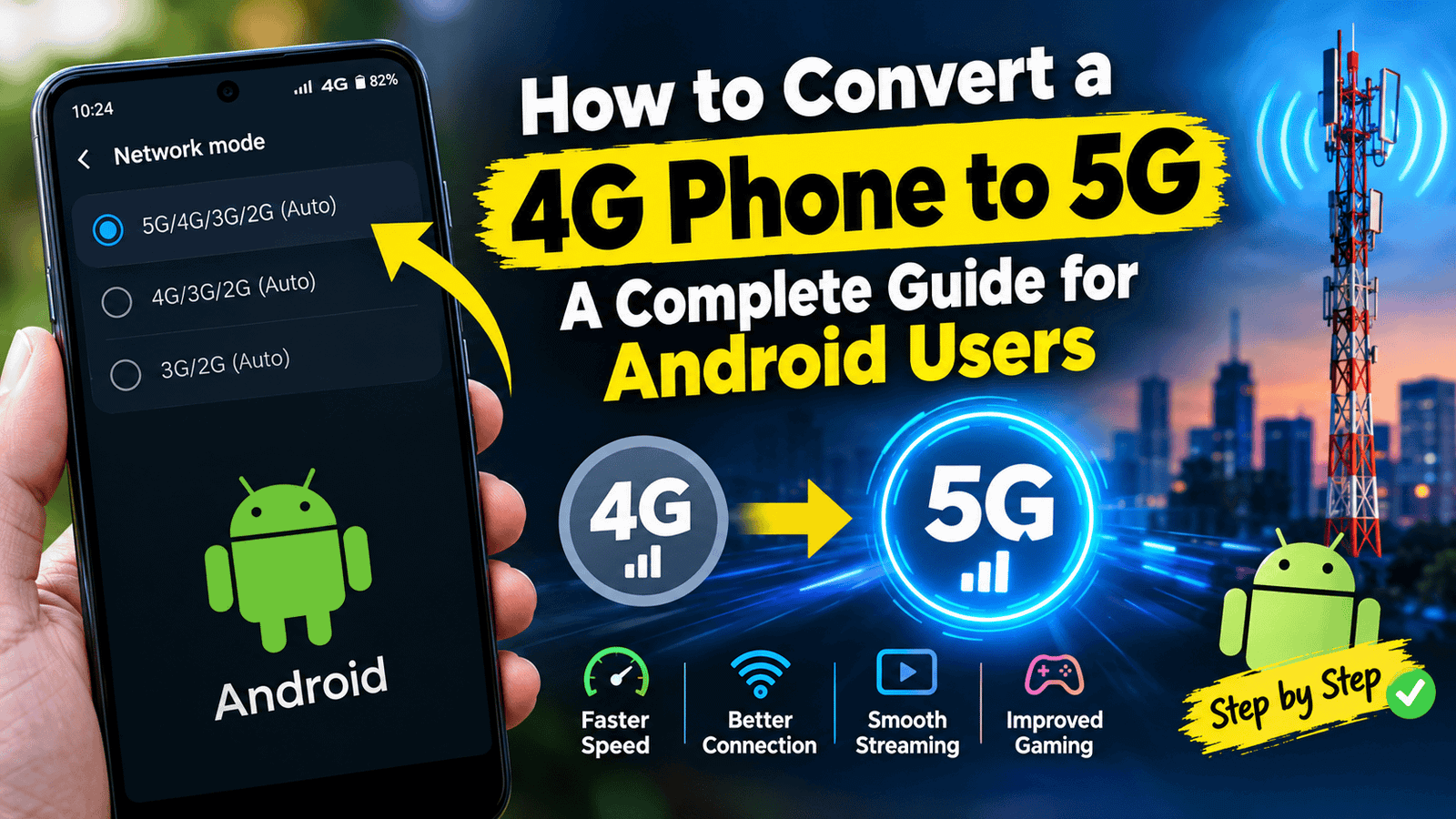
- Tap Preferred Network Type or Network Mode.
- Select an option such as 5G/4G/3G/2G (Auto) or 5G Preferred, if available.
- Return to the home screen and wait for your phone to connect.
Your phone may continue to display 4G if 5G coverage is unavailable in your location. This is normal because compatible phones automatically switch between supported networks depending on signal strength and availability.
Some manufacturers and carriers hide these options, so the menu may look different on your device.
Step 3: Check Your SIM Card and Mobile Plan
Having a 5G-compatible phone does not automatically guarantee access to a 5G network.
You should also check your SIM card and mobile package.
Contact your mobile network provider to confirm the following:
- Your current SIM or eSIM is eligible for 5G service.
- Your mobile plan supports 5G connectivity.
- 5G coverage is available in your area.
- Your phone model is supported by the carrier.
- Your account does not have any network restrictions.
In many cases, an existing SIM card can work with 5G, but requirements vary by operator and country.
If you live in Pakistan, check the latest 5G availability and device requirements directly with your mobile network provider. Do not assume that 5G is available everywhere simply because your phone supports it.
Step 4: Update Your Phone Software
Software updates can improve network stability and fix connectivity problems on supported smartphones.
To check for an update:
- Open Settings.
- Go to Software Update or System Update.
- Select Check for Updates.
- Install any available official update.
- Restart your phone after the installation.
Keep your phone connected to Wi-Fi and ensure the battery is sufficiently charged before installing a major update.
However, a software update cannot normally add 5G capability to a phone that lacks the required hardware. Only use official updates provided by your device manufacturer.
Step 5: Restart Your Phone and Check the Signal
If you have enabled 5G but your phone still displays 4G, try these basic troubleshooting steps.
Restart your phone: A restart can help refresh the network connection.
Toggle Airplane Mode: Turn Airplane Mode on for approximately 10 seconds, then turn it off.
Move to another location: Your current area may have weak or no 5G coverage. Try a location where your carrier confirms 5G service is available.
Check mobile data: Make sure mobile data is enabled for the correct SIM card.
Reset network settings: If the problem continues, consider resetting your network settings. This may remove saved Wi-Fi networks, Bluetooth pairings, and other network configurations, depending on your device.
If none of these steps works, contact your mobile operator or the phone manufacturer’s support team.
Can an App Change a 4G Phone to 5G?
Many apps on the Google Play Store advertise features such as 5G mode, network switching, or faster internet. These apps may provide network information or shortcuts to certain settings, but they cannot transform a 4G-only phone into a genuine 5G device.
Some apps also claim to unlock hidden 5G settings. Be cautious when using them, especially if they request unnecessary permissions or ask you to install files from unknown websites.
For your safety, avoid installing modified system applications, unofficial firmware, or unknown APK files just to enable 5G. These changes may create security risks or cause your phone to stop working correctly.
The safest method is to use the network settings already provided by your phone manufacturer.
What If Your Phone Supports Only 4G?
If your phone is limited to 4G LTE, you have several practical options.
Option 1: Continue Using 4G LTE
4G remains suitable for everyday activities such as browsing websites, watching videos, using social media, making video calls, and playing many online games.
Your actual internet speed depends on signal strength, network congestion, your carrier, and your data package.
Option 2: Upgrade to a 5G Smartphone
If you want to use 5G, buying a compatible smartphone is generally the most straightforward option.
Before purchasing, check the exact model number, supported 5G bands, local carrier compatibility, battery life, and software support. You do not necessarily need an expensive flagship phone to access 5G.
Option 3: Consider a Compatible External Device
Some external mobile broadband devices and 5G routers can connect to a 5G network and share the connection over Wi-Fi. You can then connect your 4G smartphone to that Wi-Fi network.
This does not upgrade your phone’s cellular hardware. Your phone is still a 4G device, but it can use the internet connection provided by the external device.
Check the router’s network compatibility, coverage, and data-plan requirements before purchasing one.
Is 5G Faster Than 4G?
5G can provide higher download speeds, lower latency, and greater network capacity than 4G under suitable conditions. However, the actual difference depends on the network, signal quality, frequency bands, device capabilities, and number of users sharing the connection.
A strong 4G connection may sometimes perform better than a weak 5G connection. For this reason, switching to 5G does not guarantee faster internet in every location.
Also, 5G may consume more battery in some situations, particularly when the signal is weak or the phone frequently switches between networks. Many smartphones manage these changes automatically.
Frequently Asked Questions
1. Can I convert my 4G phone to 5G for free?
Not if your phone lacks 5G hardware. You can enable 5G for free on a compatible device, provided your carrier and