How to Get WiFi Password on Android, iPhone, and Windows
Have you ever connected your phone or computer to a WiFi network but forgotten its password? This is a common problem. You may need the password to connect another device, help a family member access the internet, or reconnect after resetting your phone.
The good news is that you can often find a saved WiFi password without installing any additional apps. Android phones, iPhones, and Windows computers offer built-in options to view or share WiFi passwords for networks you are authorized to use.
In this guide, you will learn how to find a saved WiFi password using different devices, share a connection with another person, and troubleshoot common problems.
What Is a WiFi Password?
A WiFi password is a security key that protects a wireless network from unauthorized access. When someone wants to connect to a password-protected network, they must enter the correct password or use an approved sharing method.
WiFi passwords are usually created by the router owner or internet service provider. Some routers have a default password printed on a label, while others use a custom password chosen by the owner.
If you have forgotten your own WiFi password, several simple methods may help you recover it.
1. How to Get WiFi Password on Android
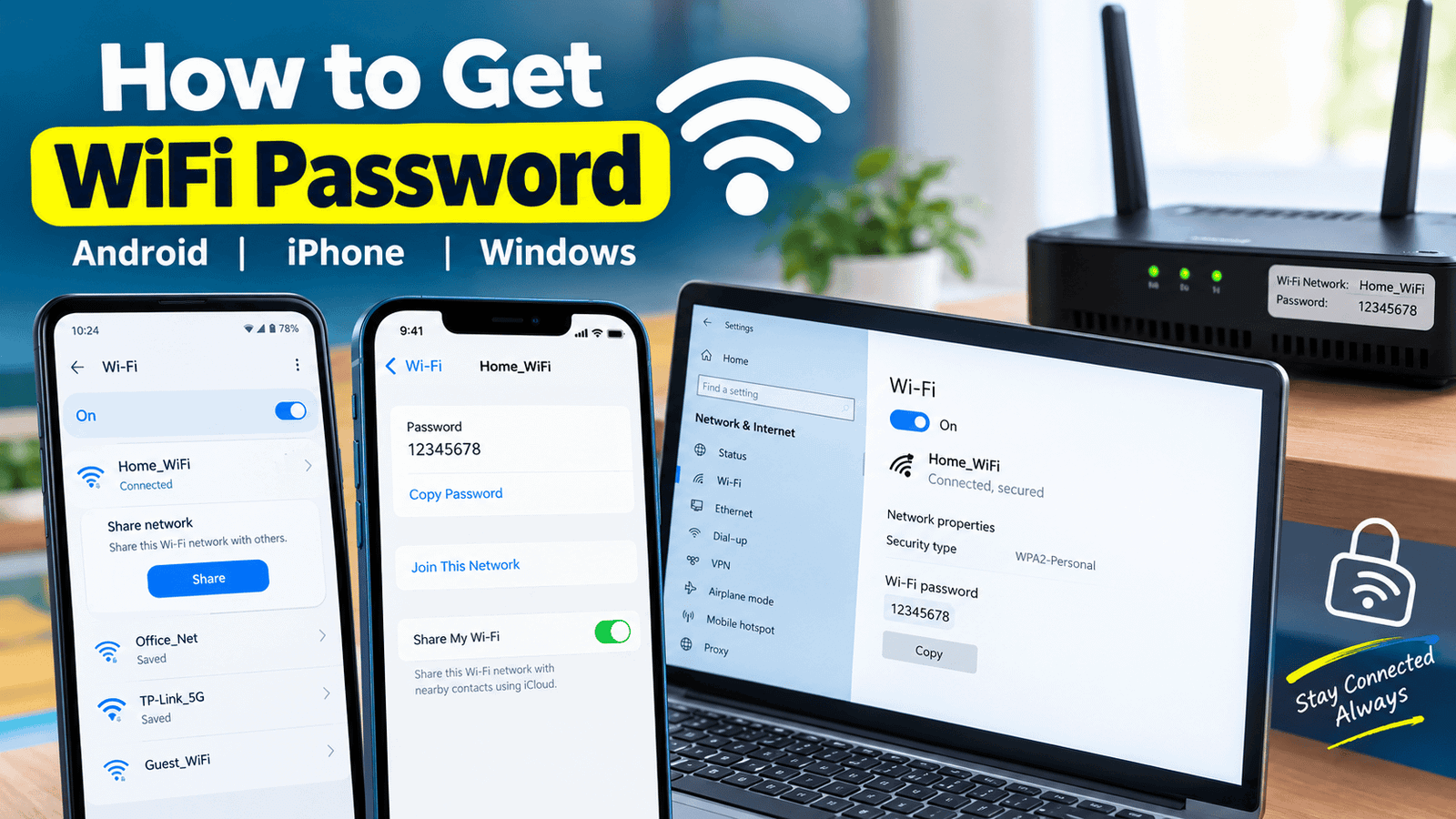
Many modern Android phones allow users to view or share the password of a connected WiFi network through the Settings app. The exact steps may differ depending on your phone brand and Android version.
Follow these steps:
- Open the Settings app on your Android phone.
- Select WiFi, Network & Internet, or Connections.
- Tap the WiFi network you are currently connected to.
- Look for the Share option.
- Verify your identity using your fingerprint, PIN, or screen lock.
- A QR code should appear on supported devices.
- Check whether your phone also displays the WiFi password below the QR code.
If the password is displayed, you can use it to connect another authorized device.
What If Your Android Phone Only Shows a QR Code?
Some Android phones display a QR code without showing the password as readable text. You can scan this code with another phone’s camera or a compatible QR scanner to connect to the same network.
On certain devices, the password may be visible after scanning the code, but this depends on the phone software and scanner.
If your phone does not offer a WiFi-sharing option, check for a system update or consult the manufacturer’s support instructions.
Important: These steps generally work for networks saved on your device. They do not reveal passwords for nearby WiFi networks you have never accessed.
2. How to Get WiFi Password on iPhone
Apple provides a built-in option to view saved WiFi passwords on supported iPhone software versions.
If your iPhone runs iOS 16 or later, try these steps:
- Open Settings.
- Tap WiFi.
- Find the network you want to check.
- Tap the information button next to the network name.
- Tap the password field.
- Authenticate using Face ID, Touch ID, or your device passcode.
- View or copy the password when it appears.
If you need a password for a previously connected network, open the WiFi settings and look for the option to access known or saved networks. Select the relevant network and check its details.
The available options can vary depending on your iOS version.
How to Share WiFi on iPhone
You may also be able to share WiFi access directly with another Apple device.
Make sure both devices have WiFi and Bluetooth enabled, are nearby, and meet Apple’s requirements for WiFi password sharing. The person sharing the network should be connected to it, and both devices may need to be signed in to their Apple Accounts.
When the other person attempts to join the network, a sharing prompt may appear on your device. Tap the option to share the password if you want to authorize the connection.
This method is useful when you do not want to read or manually type the password.
3. How to Find WiFi Password on Windows 11
If your Windows computer is connected to a WiFi network, you may be able to view the saved password through Windows settings.
On supported Windows 11 versions, try the following method:
- Open Settings.
- Select Network & internet.
- Open the WiFi settings.
- Find the network properties or the option to view the WiFi password.
- Select the available option to display the password.
The exact location can vary with Windows updates and network configuration.
Find the Password Through Control Panel
On some Windows computers, the classic Control Panel method is also available.
- Open the Start menu.
- Search for Control Panel.
- Select Network and Internet.
- Open Network and Sharing Center.
- Click your active WiFi connection.
- Select Wireless Properties.
- Open the Security tab.
- Select Show characters, if available.
The network security key field should display the saved password if Windows has stored it and your account has the required permissions.
These steps are intended for your own computer or a device you are authorized to manage.
4. How to Find Your WiFi Password on a Router
If you cannot find the password on your phone or computer, check the router itself.
Many routers have a label on the back, bottom, or side. This label may include the default WiFi network name, password, and other connection details.
Follow these steps:
- Locate your router.
- Check its label for terms such as WiFi Password, Wireless Key, or WPA Key.
- Confirm that the network name matches your WiFi connection.
- Use the listed password if it has not been changed.
Keep in mind that the printed password may no longer work if the router owner has changed the original settings.
Check Your Internet Service Provider’s App
Some internet service providers offer an official mobile app or customer portal that lets customers manage their home network.
Depending on your provider and router, you may be able to view or change the WiFi password after signing in to your account.
If the password has been changed and you cannot recover it, contact your internet service provider for assistance.
5. How to Find a Saved WiFi Password on a Mac
Mac computers can store WiFi passwords for networks you have previously joined.
Depending on your macOS version and saved credentials, you may be able to retrieve the password through the system’s password management tools.
Try these steps:
- Open the Passwords app on supported macOS versions.
- Unlock it using your Mac login credentials or another supported authentication method.
- Search for the WiFi network name.
- Open the matching saved entry.
- View the password if it is available.
On older macOS versions, saved network credentials may be accessible through Keychain Access.
If the password is not stored on your Mac, you may need to check another authorized device or contact the network administrator.
6. Can You Get a WiFi Password Without Connecting?
You generally cannot retrieve a private WiFi password simply by turning on WiFi or searching for nearby networks.
Your device may display nearby network names, but that does not mean it can reveal their passwords.
If you need access to a network you have not joined before, the appropriate options include:
- Ask the network owner to provide the password.
- Request access through the router owner’s approved guest network.
- Ask the owner to share access using a QR code.
- Check for an official public WiFi access process at a hotel, library, café, or other venue.
Avoid apps or websites that claim they can instantly reveal any nearby WiFi password. Such services may be misleading, collect personal information, or request unnecessary permissions.
Only access networks when you have permission from the owner.
7. What to Do If You Cannot Find the WiFi Password
Sometimes the password option does not appear or the saved password does not work. Try these troubleshooting steps.
Check Your Device’s Software Version
Older Android, iOS, and Windows versions may not support the same password-viewing features as newer versions. Check your device’s available settings and update instructions.
Confirm the Correct Network
If you have several saved networks with similar names, make sure you are checking the correct one. A password for one network may not work on another.
Ask the Router Owner
If you are using a workplace, school, hotel, or shared household network, the administrator may have changed the password. Ask the person responsible for managing the connection.
Restart Your Router
Restarting your router may resolve some connection problems, but it will not reveal a forgotten password or restore a custom password automatically.
Do not press the factory reset button unless you understand the consequences. Resetting a router can erase custom network settings and may require you to configure the connection again.
8. Tips for Keeping Your WiFi Password Safe
Your WiFi password protects your home or office network. A few basic precautions can help keep your connection secure.
- Use a strong password that is difficult to guess.
- Avoid sharing your main WiFi password with people who do not need ongoing access.
- Use a guest network when your router supports it.
- Do not publish your WiFi password in public posts or messages.
- Change the default router administrator password.
- Use modern WiFi security settings supported by your router, such as WPA2-AES or WPA3.
- Keep your router’s firmware updated when updates are available.
If you share your password with someone temporarily, consider changing it later if you no longer want that person to have access.
Frequently Asked Questions
Can I see my WiFi password on any Android phone?
Not every Android phone offers the same feature. Many modern devices let you share a saved WiFi connection through a QR code, and some display the password as text. The available options depend on your phone’s software.
Can I find my WiFi password on an iPhone?
Yes, supported iPhones running iOS 16 or later can display saved WiFi passwords through the WiFi settings after authentication.
Can I recover a forgotten WiFi password without resetting the router?
Often, yes. You can check a connected phone, a Windows computer, a Mac, the router label, or your internet provider’s official account tools.
Are WiFi password finder apps safe?
Not all of them are trustworthy. Many apps cannot retrieve passwords that your device has not saved. Be careful with apps that request unnecessary permissions or promise access to private networks.
Can I get a WiFi password using a QR code?
A compatible QR code can allow a device to join a WiFi network without manually entering the password. Some QR scanners may also display the password, depending on the code and scanner.
Final Thoughts
Finding a forgotten WiFi password is often possible without installing extra software. Android users can check the WiFi sharing option, iPhone users can view saved passwords through supported settings, and Windows or Mac users may be able to retrieve stored network credentials.
If these methods do not work, check your router label or contact the internet service provider. Always use these methods for networks you own or have permission to access.
With the right steps, you can recover access to a saved network, connect another device, and avoid resetting your router unnecessarily.