Hey Siri on Android: How to Use Siri-Like Voice Assistant on Your Phone
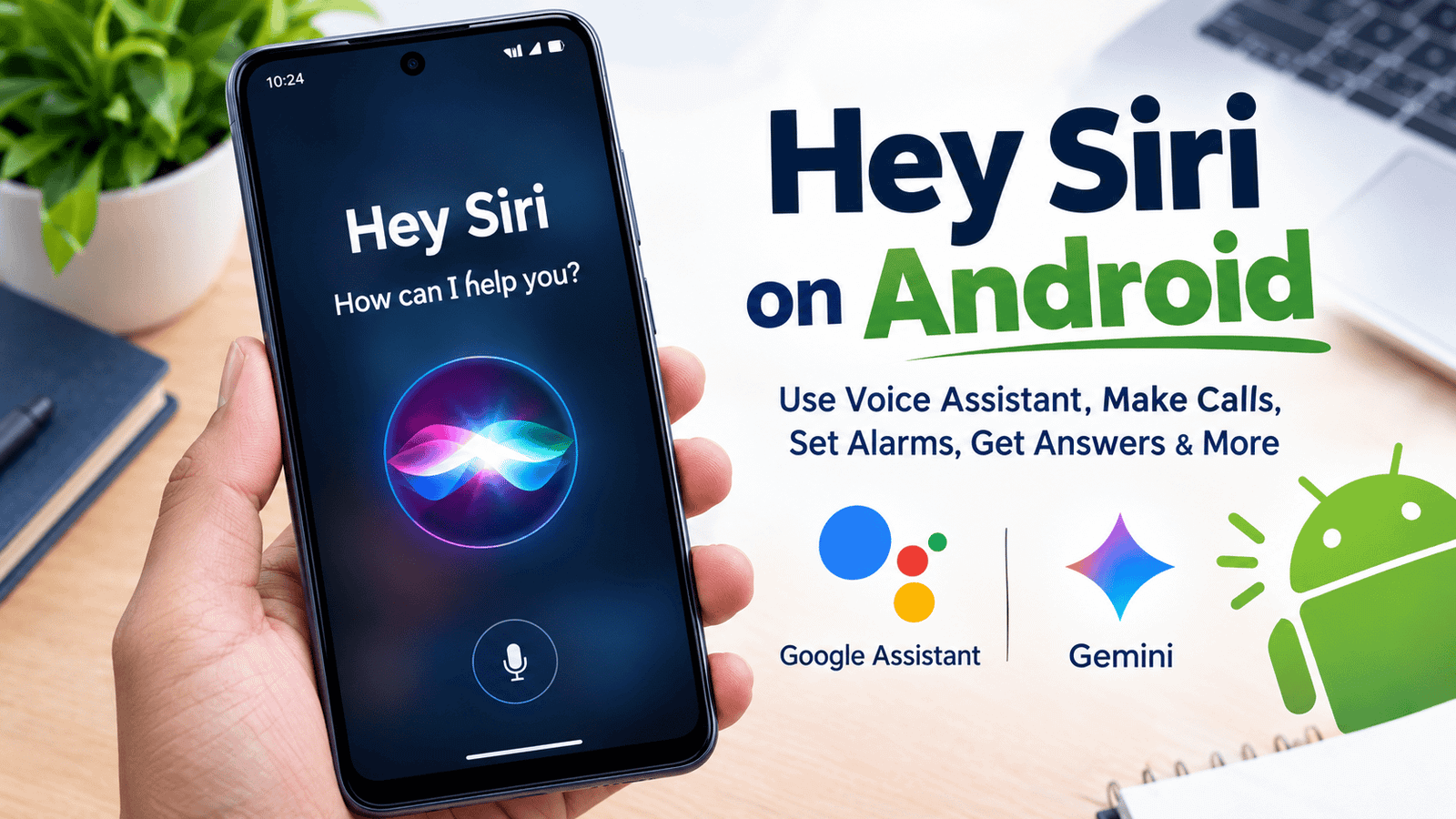
Have you ever wanted to use Siri on your Android phone? Siri is Apple’s popular voice assistant that helps users make calls, send messages, open apps, set reminders, and perform other tasks using voice commands. However, Siri is designed for Apple devices, such as the iPhone, iPad, and Mac. It is not officially available as an Android app.
The good news is that Android users can enjoy many similar features with Google Assistant and Gemini. These voice assistants can help you control certain phone functions, search the internet, get answers to questions, and manage everyday tasks without typing.
In this guide, you will learn how to use a Siri-like assistant on Android, how to activate voice commands, and which features can make your smartphone easier to use.
What Is Siri?
Siri is Apple’s built-in virtual assistant. It allows users to interact with compatible Apple devices using natural language. Instead of opening an app manually, you can ask Siri to perform supported tasks with a simple voice command.
For example, you can say, “Hey Siri, call my friend,” or “Hey Siri, set an alarm for 7 AM.” Siri understands supported commands and responds by completing the requested action or providing information.
Siri is useful because it saves time and makes smartphone use more convenient. It can help with reminders, weather updates, navigation, messages, music, and other supported features.
However, if you own an Android phone from Samsung, Xiaomi, Vivo, Oppo, Realme, Google, or another manufacturer, you need an Android-compatible alternative.
Can You Install Hey Siri on Android?
No official version of Apple Siri is available for Android phones. Apps claiming to provide the original Apple Siri experience on Android should be checked carefully before installation.
You do not need to install an unofficial Siri app to enjoy voice assistant features. Android already offers alternatives that can perform many similar tasks.
The main options include:
- Google Assistant: A voice assistant that supports many everyday phone commands on compatible devices.
- Google Gemini: Google’s AI assistant, available on supported Android devices, that can answer questions and help with various tasks.
- Manufacturer assistants: Some phone brands offer their own assistant features or voice-control tools.
The best option depends on your Android version, device model, installed apps, and the features available in your region.
How to Use a Siri-Like Assistant on Android
Follow these steps to start using a voice assistant on your Android phone.
Step 1: Open the Google App
Unlock your Android phone and find the Google app. If it is not installed, check the Google Play Store for the official Google app.
Open it and make sure you are signed in to your Google account if the feature requires an account.
Step 2: Check Your Assistant Options
Depending on your phone and software version, you may have Google Assistant, Gemini, or both available.
Open the relevant Google app and check its settings. If Gemini is available, you may be able to use it as your primary digital assistant.
You can also check your phone’s Settings app for options such as Default digital assistant app. The exact menu name and location may vary by device.
Step 3: Enable Voice Activation
Some compatible devices support voice activation through a wake phrase, while others require you to press a button or tap a microphone icon.
Open your assistant’s settings and look for options related to voice activation, Voice Match, or “Hey Google,” if supported.
Follow the instructions displayed on your phone to complete setup. You may need to grant microphone permission and train the assistant to recognize your voice.
Step 4: Try a Voice Command
Once the assistant is ready, try a simple command such as:
- “What is the weather today?”
- “Set an alarm for 7 AM.”
- “Open YouTube.”
- “How many days are left until Friday?”
- “Tell me a joke.”
The available actions depend on your assistant and device configuration.
If the assistant does not respond, check your microphone permissions, internet connection, language settings, and voice activation options.
Google Assistant vs. Google Gemini
Google Assistant and Gemini are not exactly the same, although their features can overlap.
Google Assistant is well known for traditional voice commands, including alarms, timers, calls, navigation, and smart-home controls on supported devices.
Gemini is Google’s AI assistant. It is designed to handle natural-language questions, explain topics, help with writing, brainstorm ideas, and perform certain supported actions.
Some familiar Assistant features may work differently when Gemini is selected. Availability also varies by device, account, country, and software version.
If your main goal is to control your phone by speaking, check that your chosen assistant supports the actions you need.
Useful Voice Commands for Android
Here are some examples you can try with a compatible Android assistant.
1. Make a Phone Call
Say, “Call Ahmed,” using the contact name saved on your phone. The assistant may ask you to confirm which contact you mean.
Make sure the relevant permissions are enabled.
2. Send a Text Message
You can try a command such as, “Send a message to Ahmed saying I will arrive in ten minutes.”
Review the recipient and message before sending, especially if the assistant asks for confirmation.
3. Set an Alarm
Say, “Set an alarm for 6:30 AM.”
This is helpful when you are busy, getting ready for bed, or unable to type on your phone.
4. Check the Weather
Ask, “What is the weather forecast for today?”
Your assistant may provide current conditions or a forecast. Weather accuracy and location details depend on the available service and your settings.
5. Open an App
Try saying, “Open WhatsApp,” or “Open YouTube.”
This can help you access frequently used apps without searching through your home screen.
6. Get Directions
Ask for directions to a place, such as the nearest petrol station or a particular address. A compatible assistant may open a navigation app and show the available route.
Location permission may be required for nearby searches.
7. Ask General Questions
You can ask questions about science, technology, education, history, or other subjects.
Gemini can also help explain difficult concepts, summarize information, and create ideas. For important decisions, verify answers using reliable sources.
How to Make Your Android Phone Respond to Your Voice
If you want a hands-free experience similar to “Hey Siri,” configure the supported wake phrase for your chosen assistant.
- Open the Google app or your assistant app.
- Open the app’s settings.
- Look for Voice Match or voice activation settings.
- Enable the supported wake phrase if it is available.
- Follow any voice-training instructions.
- Lock your phone and test the feature, if your device supports locked-screen activation.
Not every phone supports every hands-free feature. Some functions may require the screen to be on, the phone to be unlocked, or specific permissions to be enabled.
If voice activation is unavailable, you can often start the assistant by pressing and holding the power button, using a supported gesture, or tapping the assistant icon.
Is It Safe to Install a Siri App on Android?
You should be careful when downloading third-party apps that claim to bring Siri to Android.
Some apps use a Siri-like name or interface but do not provide Apple’s official assistant. Others may request permissions that are unnecessary for their advertised features.
Before installing any voice assistant app, follow these safety tips:
- Download apps from trusted sources, such as Google Play.
- Check the developer’s name and recent reviews.
- Review microphone, contact, location, and other permissions.
- Avoid apps that request unnecessary access to your personal information.
- Never share passwords, banking PINs, or verification codes with a voice assistant.
- Keep Android and your installed apps updated.
A trusted, built-in assistant is usually the simplest option for everyday voice commands.
Benefits of Using a Voice Assistant on Android
Voice assistants offer several practical benefits.
Saves time: You can perform supported tasks without navigating through several menus.
Hands-free convenience: On compatible devices, you can use voice commands while cooking, working, or getting ready.
Easy access to information: Ask questions, check the weather, or request directions.
Improved accessibility: Voice interaction can help people who find typing or touching small controls difficult.
Everyday productivity: Set reminders, manage alarms, create notes, and organize simple tasks with supported features.
Remember that some commands require an internet connection, while others may work locally depending on your device and assistant.
Frequently Asked Questions
Can I download the original Siri on Android?
No. Apple does not offer an official Siri app for Android. You can use alternatives such as Google Assistant or Gemini.
What is the Android version of Hey Siri?
There is no single Android version of Siri. Google Assistant and Gemini provide overlapping voice-assistant features, depending on your device and configuration.
Can I activate Google Assistant by saying Hey Google?
Compatible devices can support “Hey Google” voice activation. Check your assistant settings to see whether the feature is available.
Does a voice assistant work without the internet?
Some basic device functions may work without an internet connection, but many search, AI, and online services require internet access.
Is Google Gemini free on Android?
Google offers access to Gemini without a paid subscription in some configurations, while certain advanced features may require a paid plan. Availability and limits can change by country, account, and plan.
Can a voice assistant unlock my Android phone?
Some devices support specific voice-assistant functions on the lock screen, but voice activation does not automatically mean the assistant can unlock your phone. Follow your phone manufacturer’s security settings and avoid weakening your device’s protection.
Final Thoughts
Although you cannot install the original Apple Siri on an Android phone, you can enjoy many similar features with Google Assistant and Gemini. These tools can help you make calls, set alarms, open apps, ask questions, and perform other supported tasks using your voice.
To get started, check which assistant is available on your device, enable its supported voice features, and test a few simple commands. Always review app permissions and use trusted software to protect your privacy.
With the right settings, your Android phone can become easier and more convenient to use without needing Apple’s Siri.