 by
by How to Unlock Any Android Phone Without the Lock Screen
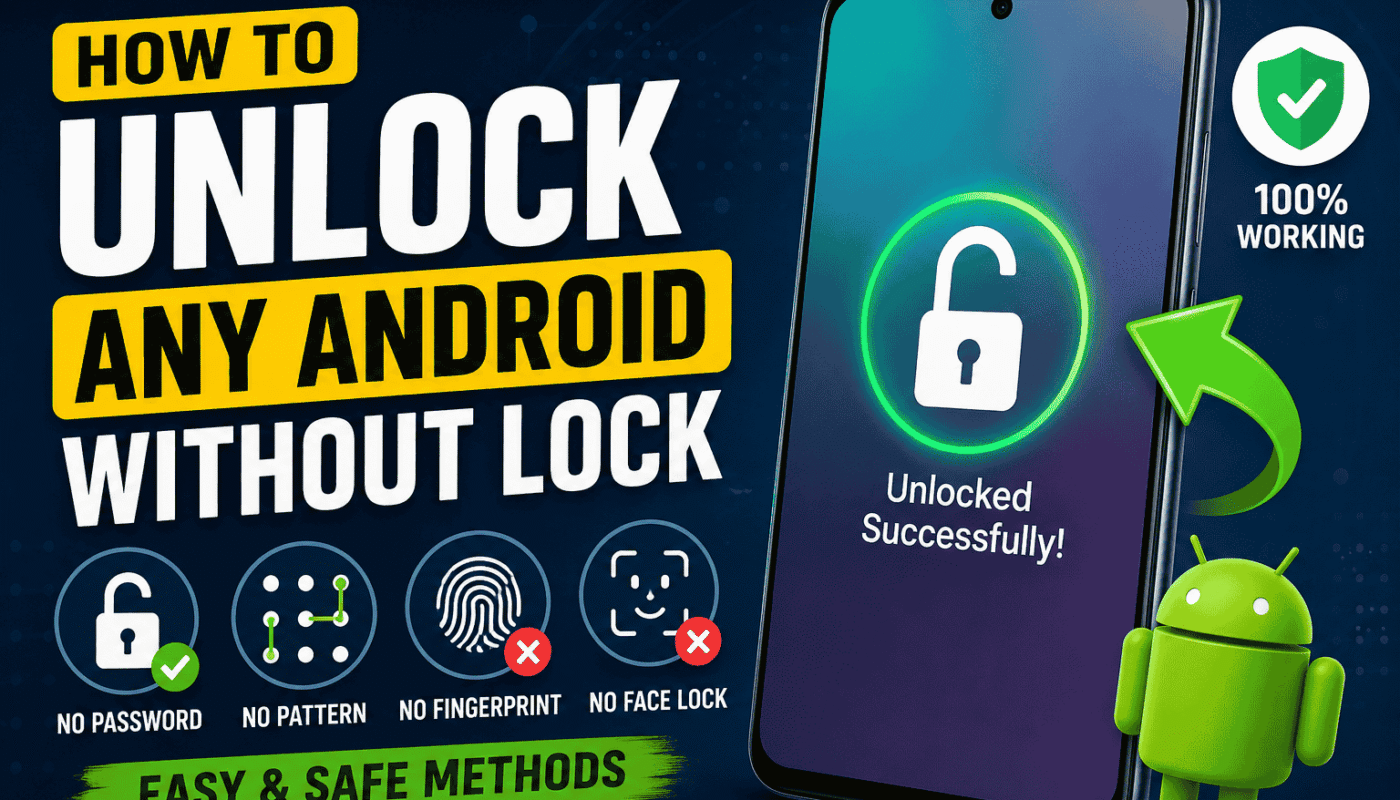
Forgetting your Android phone’s PIN, password, or pattern can be frustrating. Many people search for ways to unlock their phones without losing important data. The good news is that there are a few safe and official methods that may help you regain access to your Android device.
However, it is important to understand that modern Android phones are designed with strong security features. These features protect your personal information from unauthorized access. Because of this, there is no universal trick or secret app that can unlock every Android phone without permission.
In this guide, you will learn the legal and safe ways to unlock your own Android phone if you have forgotten the lock screen. These methods work depending on your Android version, phone brand, and security settings.
Why Android Phones Have Lock Screens
A lock screen protects your personal information, including:
- Photos and videos.
- Contacts and messages.
- Banking applications.
- Social media accounts.
- Emails and documents.
Without proper security, anyone could access your private data. That is why Android devices use PINs, passwords, patterns, fingerprints, and face recognition.
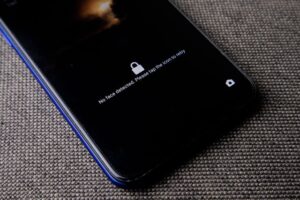
Method 1: Use Your Fingerprint or Face Unlock
If your phone already has fingerprint or face unlock enabled, this is the easiest solution.
Simply:
- Turn on the screen.
- Place your registered finger on the sensor.
- Or look at the front camera for Face Unlock.
- Your phone may unlock instantly.
This only works if biometric security was already set up before the lock problem occurred.
Method 2: Unlock Using Google Find My Device
If your phone is connected to your Google account, Find My Device can help secure your device. While it no longer removes the screen lock on modern Android versions, it can help you erase the device so you can set it up again if you’ve forgotten the lock credentials.
Requirements:
- Internet connection.
- Google account signed in.
- Find My Device is enabled.
Steps:
- Open Find My Device on another device or computer.
- Sign in with the same Google account.
- Select your phone.
- Choose Erase Device if you cannot remember the lock.
- After the reset, sign in with your Google account again during setup.
This option deletes the data stored on the phone unless you have a backup.
Method 3: Smart Lock (If Previously Enabled)
Some Android phones support Smart Lock.
It can automatically unlock your phone when:
- You are at home.
- A trusted Bluetooth device is connected.
- The phone is being carried.
- Certain trusted locations are detected.
If Smart Lock was enabled before you forgot the password, your phone may unlock automatically under those conditions.
Method 4: Use Samsung Find My Mobile
Samsung users have another official option.
If you previously registered your Samsung account and enabled remote services, you may be able to manage your device remotely depending on your device model and software version.
Requirements:
- Samsung account.
- Internet connection.
- Remote features enabled.
Check your Samsung account options to see what recovery features are available for your device.
Method 5: Factory Reset from Recovery Mode
If you cannot access your phone using any official recovery option, performing a factory reset is usually the last available method.
General steps:
- Turn off the phone.
- Press the correct button combination for your device.
- Open Recovery Mode.
- Select Wipe Data/Factory Reset.
- Confirm the reset.
- Restart the phone.
After resetting:
- All locally stored data is erased.
- You must sign in with the same Google account that was previously linked to the phone because of Factory Reset Protection (FRP).
This security feature prevents stolen devices from being reused without authorization.
Can You Unlock an Android Phone Without Losing Data?
Sometimes yes, but it depends on the situation.
You may keep your data if:
- Fingerprint unlock works.
- Face Unlock works.
- Smart Lock activates.
- You remember the password later.
- You have access through approved manufacturer recovery options.
If a factory reset is required, local data will usually be erased. Regular backups can help protect your information.
Apps That Claim to Unlock Any Android Phone
Many websites and videos promote apps that promise to unlock every Android phone.
Be careful.
Some of these applications:
- Do not work.
- Require payment without guarantees.
- May contain malware.
- Can compromise your privacy.
Always download software only from trusted and official sources.

Tips to Avoid Lock Screen Problems
You can prevent future problems by following these simple tips:
- Choose a memorable PIN.
- Save your password in a secure password manager.
- Enable fingerprint unlock.
- Enable Face Unlock if available.
- Turn on automatic cloud backups.
- Keep your Google account recovery information updated.
- Store emergency recovery details in a safe place.
These small steps can save you a lot of time if you ever forget your password.
Frequently Asked Questions
Can I unlock my Android phone without the password?
If you previously enabled fingerprint, Face Unlock, Smart Lock, or another official recovery option, you may be able to access your phone. Otherwise, a factory reset is often required.
Is there a universal Android unlock code?
No. Modern Android phones do not have a universal unlock code.
Will a factory reset remove the lock screen?
Yes. A factory reset removes the lock screen, but you will still need to verify the Google account previously linked to the device because of Factory Reset Protection (FRP).
Is it legal to unlock an Android phone?
Yes, if the phone belongs to you or you have the owner’s permission. Attempting to bypass security on someone else’s device without authorization may be illegal.
Conclusion
Forgetting your Android phone password can be stressful, but several official recovery methods can help. Depending on your phone and settings, you may be able to use fingerprint unlock, Face Unlock, Smart Lock, Google account recovery options, or a factory reset.
Avoid websites and apps that promise to unlock every Android phone instantly, as many are unreliable or unsafe. Following official methods protects both your personal information and your device.
The best way to avoid future lock screen issues is to keep regular backups, enable biometric security, and make sure your recovery information is always up to date.