Pattern Lock App for Android: Features, Benefits, and How to Use It
Smartphones contain personal photos, messages, social media accounts, and other private information. Protecting this data is important, especially when you share your phone with family members or friends. A pattern lock app for Android can help you add an extra layer of privacy by allowing you to lock selected apps with a pattern instead of relying only on your phone’s screen lock.
The Pattern Lock App for Android is an option for users who want a simple way to protect apps and keep their personal information private. Before installing any app locker, it is helpful to understand its features, how pattern-based protection works, and what you should check before downloading it.
You can visit the Pattern Lock App page on APKTower to learn more about the app and check its available download information.
What Is a Pattern Lock App for Android?
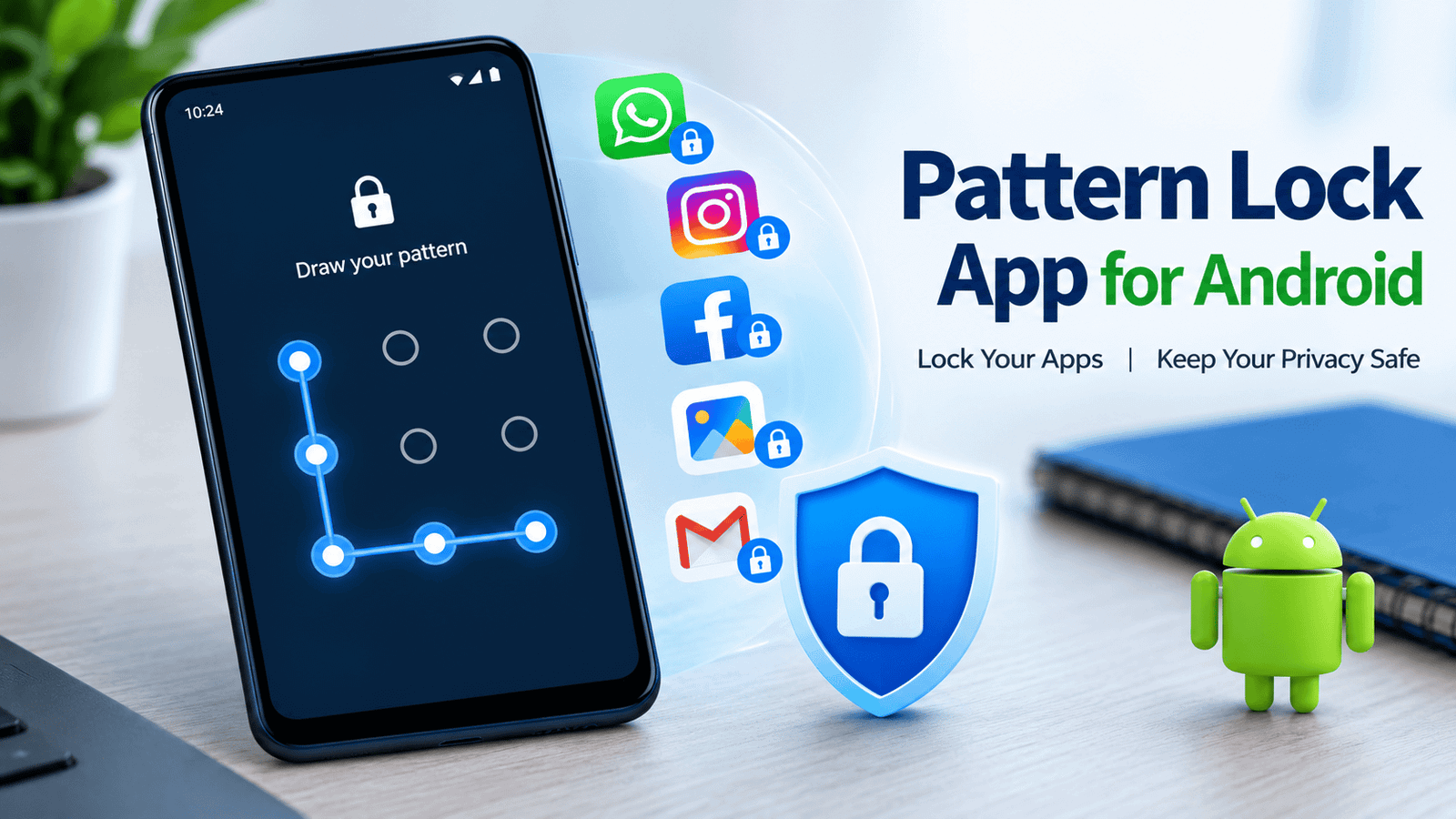
A pattern lock app is an Android application designed to restrict access to selected apps using a pattern drawn on the screen. Depending on the app’s features and your Android version, it may allow you to protect applications such as WhatsApp, Facebook, Instagram, Gallery, and other apps containing personal information.
Instead of entering a PIN or password every time, you draw a predefined pattern by connecting dots on the screen. If the pattern matches the one you previously created, the app allows access.
This type of protection can be useful for people who want to keep certain apps private without changing their phone’s main screen lock.
However, an app lock is not a replacement for Android’s built-in security features. You should continue using a secure screen lock to protect your entire device.
Key Features of a Pattern Lock App
The available features depend on the particular application and its version. Common features found in pattern-based app lockers include the following.
1. Pattern-Based App Protection
The main purpose of a pattern lock app is to restrict access to selected applications. You create a pattern and use it whenever you want to unlock a protected app.
This can be helpful if you allow someone to use your phone but do not want them opening certain applications.
2. Privacy for Personal Applications
Many people store private conversations, personal photographs, and account information on their smartphones. An app locker may help prevent casual access to selected applications.
For example, you might want to lock your messaging app or photo gallery while leaving other applications available.
Keep in mind that locking an app does not necessarily hide its notifications, files, or information stored elsewhere on the phone. Review your notification and privacy settings for better protection.
3. Simple Unlocking Method
A pattern lock uses a visual method rather than requiring you to remember a long password. Users who prefer drawing a pattern may find this method convenient.
Choose a pattern that is difficult for other people to guess. Avoid simple shapes, such as a straight line or an obvious letter, because someone who knows you may guess them.
4. Selective App Locking
Some app lockers allow users to choose which applications require authentication. This provides more flexibility than applying the same restriction to every app.
If the Pattern Lock App supports this feature, you can select the applications that contain sensitive information and leave frequently used apps unlocked.
Check the app’s official description to confirm which options are available in its current version.
5. Additional Privacy Settings
Certain app lockers offer extra settings, such as changing the lock pattern, managing protected apps, or controlling how the lock screen appears.
These options are not available in every application. Review the listed features before installing the app rather than assuming that all app lockers provide the same tools.
How to Download Pattern Lock App for Android
If you want to try this application, follow these steps carefully.
- Open the Pattern Lock App page on APKTower.
- Read the available app description and check its supported Android version.
- Look for the developer’s name, app version, and update information.
- Check the requested permissions and confirm that the application is suitable for your device.
- If you decide to download it, follow the website’s available instructions.
- Install the application only after checking that the download source and file are trustworthy.
Important: I cannot independently confirm the current version, exact features, or safety of the APK listed on the linked page. Verify these details before downloading or installing it.
If the app is available through Google Play, consider using that source. If you download an APK from another website, remember that Android apps installed outside Google Play may require additional installation permissions and security checks.
How to Set Up a Pattern Lock App
After installing a compatible app locker, the setup process will depend on its interface and Android version. The general process usually involves the following steps.
Step 1: Open the Application
Launch the app and review its welcome screen, instructions, and privacy information. Make sure you understand what access the application requires.
Step 2: Create a Pattern
If the app supports pattern-based authentication, follow its instructions to draw a new pattern. You may need to draw it twice to confirm your choice.
Select a pattern that is easy for you to remember but difficult for another person to guess.
Step 3: Select Applications
If selective app locking is supported, choose the apps you want to protect. These could include messaging, gallery, email, or social media applications.
Step 4: Review Required Permissions
Some app lockers request permissions such as Accessibility access or permission to display over other apps. These permissions can help an app locker perform its functions, but they may also provide significant access to your device.
Grant permissions only when they are necessary and you trust the developer. Avoid giving an unknown app unnecessary access to your contacts, messages, photographs, or other personal information.
Step 5: Test the Protection
Try opening one of the applications you selected. Confirm that the lock works as expected and that you understand how to change or recover your pattern if necessary.
If the app does not behave correctly, review its instructions and Android compatibility information.
Benefits of Using a Pattern Lock App
A pattern lock app can offer several practical benefits when it is reliable and configured correctly.
Convenient access: Drawing a pattern may be faster than typing a lengthy password whenever you open a protected application.
Extra privacy: It can help prevent casual access to selected apps when another person is using your unlocked phone.
Flexible protection: Apps that support selective locking allow you to protect specific applications instead of restricting everything.
Easy-to-understand interface: A visual pattern can be straightforward for users who prefer a simple unlocking method.
Nevertheless, these benefits depend on the app’s design, security implementation, and compatibility with your device. An app locker cannot guarantee complete privacy or protection against every type of attack.
Is Pattern Lock App Safe to Use?
Safety should be one of your main considerations when choosing an Android app locker. An application that protects your privacy should not create new security risks.
Before installing the Pattern Lock App, consider these precautions:
- Check the developer’s identity and reputation.
- Review the app’s permissions and privacy policy.
- Look for recent updates and credible user feedback.
- Download the installation file from a trustworthy source.
- Scan downloaded files with appropriate security tools.
- Avoid applications that request unnecessary access to sensitive information.
- Keep Android and your other applications updated.
You should also understand that third-party app lockers may have limitations. Some can be bypassed under certain circumstances, may stop working after system updates, or may behave differently when the phone restarts.
For stronger protection, use Android’s built-in security options whenever available. Depending on your phone manufacturer, features such as app locking, Secure Folder, or Private Space may provide a more integrated solution.
Pattern Lock App vs. Built-in Android Security
Both third-party app lockers and built-in Android security features can help protect private information, but they work differently.
A third-party pattern lock app may offer a convenient pattern-based interface and selected app protection. Its reliability depends on the developer and how it works with your device.
Built-in security features are provided by Android or your phone manufacturer. Their integration with the operating system may offer advantages in compatibility and device management.
For example, some Android phones include a native app lock, while supported devices offer dedicated private storage areas. Availability varies by manufacturer, model, and software version.
If your phone already includes a trustworthy app-locking feature, compare it with the third-party option before installing additional software.
Frequently Asked Questions
Is Pattern Lock App free?
The current price and any premium features should be checked on the app’s download page. I cannot confirm whether the version currently listed on APKTower is completely free.
Can I lock WhatsApp with a pattern?
An app locker that supports selective app protection may allow you to lock WhatsApp. Availability depends on the application’s features and compatibility with your phone. WhatsApp also offers its own privacy and authentication options on supported devices.
What happens if I forget my pattern?
Recovery options vary by application. Check whether the developer provides a secure recovery method before setting up the lock. Do not assume that every app offers pattern recovery.
Does a pattern lock app protect my entire phone?
No. A typical app locker protects selected applications rather than the entire device. Use a strong screen lock and keep your operating system updated for broader protection.
Is downloading an APK from a third-party website safe?
Not automatically. APK files from third-party websites can be outdated, modified, or unsafe. Verify the source, developer, permissions, and file integrity before installing an application.
Final Thoughts
The Pattern Lock App for Android may be worth considering if you want a visual method for restricting access to selected applications. A pattern-based lock can be convenient for everyday use and may provide an additional layer of privacy when configured correctly.
Before downloading the application from APKTower, verify its current features, compatibility, developer information, and security details. Do not grant sensitive permissions without understanding why they are required.
For the best results, combine app-level protection with your phone’s built-in security features. A strong screen lock, updated software, careful permission management, and trustworthy applications are all important steps toward keeping your personal information private.