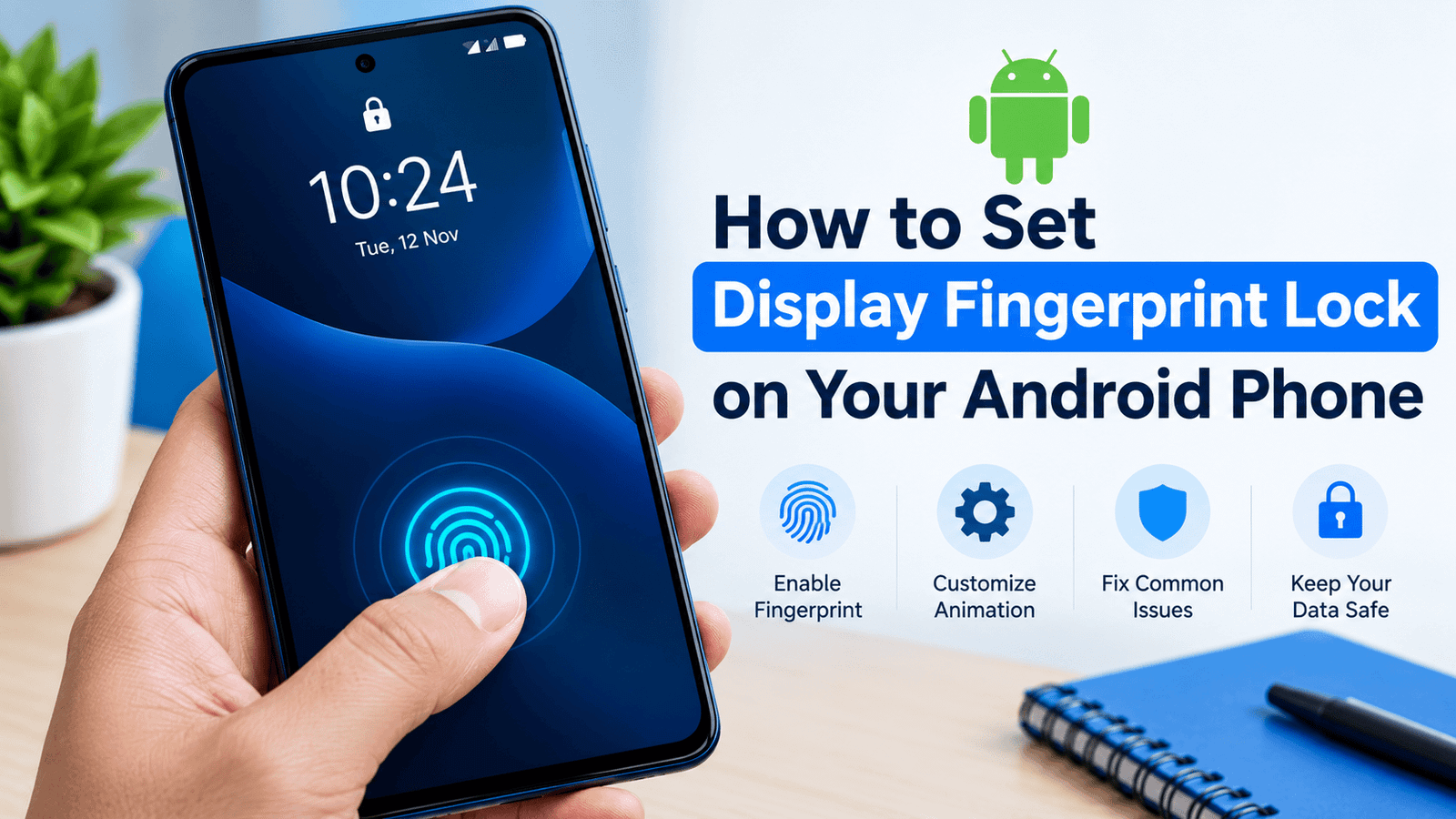
How to Set Display Fingerprint Lock on Your Android Phone
Fingerprint locks are a convenient way to protect your smartphone and keep your personal information private. Many Android phones include a built-in fingerprint sensor, while some users look for apps that create a fingerprint-style lock screen or add fingerprint-themed effects to their display.
If you want to set a display fingerprint lock on your Android phone, this guide explains the available options, how to configure fingerprint security, and how to customize your phone’s lock screen. You will also learn what to do if the fingerprint option is missing or does not work correctly.
What Is a Display Fingerprint Lock?
A display fingerprint lock is commonly used to describe a fingerprint scanner that works directly on a phone’s screen. Instead of placing your finger on a separate sensor, you touch a specific area of the display to unlock your device.
However, not every Android phone supports an in-display fingerprint scanner. Some devices have a fingerprint sensor on the side or back, while others do not have fingerprint hardware at all.
There is also a difference between a real fingerprint lock and a fingerprint lock screen app. A real fingerprint scanner verifies your registered fingerprint using supported hardware. An app may only display a fingerprint animation, wallpaper, or simulated scanning effect.
Understanding this difference will help you choose the right method for your phone.
Benefits of Using a Fingerprint Lock
A fingerprint lock can make your smartphone easier to use while helping protect your personal information.
1. Quick access to your phone
You can usually unlock your device by placing a registered finger on the supported sensor. This can be more convenient than entering a PIN every time.
2. Better privacy
A fingerprint lock helps prevent other people from casually opening your phone and viewing private messages, photos, and applications.
3. Convenient authentication
Supported Android devices can use fingerprint authentication for compatible apps, including certain banking apps and password managers.
4. A modern lock screen
Phones with an in-display scanner can provide a clean design without requiring a separate fingerprint button on the phone’s body.
Remember that fingerprint security depends on your device’s hardware, software, and configuration.
How to Set a Display Fingerprint Lock on Android
The exact steps depend on your phone’s brand and Android version. Menu names may differ between Samsung, Xiaomi, Redmi, OPPO, Vivo, Realme, Google Pixel, and other devices.
Follow these steps to check whether your phone supports fingerprint unlocking.
Step 1: Open Your Phone’s Settings
Unlock your Android phone and open the Settings application.
Look for a section named Security, Privacy, Passwords and Security, or Biometrics. The name varies depending on the manufacturer.
You can also use the search bar inside Settings and search for “Fingerprint.”
Step 2: Set a Screen Lock
Before registering a fingerprint, Android usually requires you to create a secure screen lock.
Choose one of the available options:
- PIN
- Password
- Pattern
Select a method that is easy for you to remember but difficult for others to guess. Follow the on-screen instructions to complete the setup.
Your PIN, password, or pattern can also serve as a backup when fingerprint authentication is unavailable.
Step 3: Find the Fingerprint Option
Return to the security settings and tap Fingerprint, Fingerprint Unlock, or a similarly named option.
Your phone may ask you to enter your existing PIN, password, or pattern before continuing.
If a fingerprint option appears, your device may support fingerprint authentication. Follow the instructions shown on the screen to proceed.
If the option is missing, your phone may not have a compatible fingerprint sensor, or the feature may be unavailable because of its software or configuration.
Step 4: Register Your Fingerprint
Place your finger on the supported fingerprint sensor when instructed.
For an in-display fingerprint scanner, the sensor area is usually marked on the screen during registration. For other devices, the sensor may be located on the side or back.
Lift and reposition your finger as directed until the phone confirms that registration is complete.
For better results, register the finger you use most often. You can add another finger if your device allows multiple fingerprints.
Step 5: Enable Fingerprint Unlock
After registering your fingerprint, check that fingerprint unlocking is enabled.
Some phones provide separate options for unlocking the device, accessing secure folders, or authenticating compatible applications.
Enable only the features you want to use. Lock your phone and test the scanner to make sure it works properly.
How to Customize a Fingerprint Lock Screen
If your goal is to change the appearance of the fingerprint area, you may be able to customize its animation or visual effects.
The available options depend on your smartphone.
- Open Settings.
- Search for Fingerprint or Fingerprint Animation.
- Open the relevant menu if your phone provides one.
- Review the available animation styles.
- Select your preferred style and save the changes.
Not every Android phone offers fingerprint animation customization. Some manufacturers provide several styles, while others use a fixed animation.
You can also personalize your lock screen by changing the wallpaper, clock style, notification display, and other supported settings.
Can You Use a Fingerprint Lock App on Any Android Phone?
Fingerprint lock apps are available from different developers, including apps that provide fingerprint-themed wallpapers, animations, and lock-screen effects.
However, installing an app does not automatically add a real fingerprint scanner to a phone that lacks the required hardware.
Before installing an app, check its description carefully. Determine whether it offers genuine fingerprint authentication, a visual effect, or a simulated lock screen.
If you are interested in the fingerprint lock app available at APKTower, you can visit the following page to review its details:
App page: https://apktower.com/fingerprint-lock/
Before downloading an APK file, verify the developer, Android compatibility, requested permissions, and available security information. Prefer Google Play or another trusted source whenever possible. Avoid installing an app if its permissions seem unrelated to its purpose.
A fingerprint animation may change how your screen looks, but it should not be treated as a replacement for Android’s built-in security.
How to Fix Fingerprint Lock Problems
Sometimes a fingerprint scanner may stop responding or fail to recognize your finger. Try the following solutions.
Clean the Fingerprint Sensor
Dirt, oil, moisture, and dust can interfere with fingerprint recognition. Gently clean the sensor with a soft, dry cloth.
If your phone uses an in-display scanner, clean the relevant area of the screen.
Register Your Fingerprint Again
If your phone frequently rejects your fingerprint, remove the old registration and register the finger again through Settings.
Follow the instructions carefully and make sure different parts of your fingertip are captured.
Check Your Screen Protector
Some screen protectors can affect in-display fingerprint recognition. If the problem started after installing a new protector, check whether it is compatible with your phone.
Some devices also provide an option to improve touch sensitivity or fingerprint recognition when a screen protector is installed.
Restart Your Phone
A simple restart can resolve temporary software issues. After restarting, test the fingerprint scanner again.
Update Your Phone
Check for available system updates in Settings. Install updates from your device manufacturer when appropriate.
If the fingerprint option remains unavailable or the scanner still does not work, consult the manufacturer’s support resources or an authorized repair service.
Is a Fingerprint Lock Safe?
A properly implemented fingerprint lock can provide convenient security, but no single security method is perfect.
For stronger protection, use a reliable PIN or password as your backup, keep Android updated, and download apps from trusted sources. Avoid sharing your screen-lock credentials with other people.
Be careful with apps that request Accessibility access, notification access, or permission to display over other apps without a clear reason. Such permissions can affect privacy and security.
You should also remember that Android may require your PIN, password, or pattern after restarting the phone or under certain security conditions.
Frequently Asked Questions
Can I set a fingerprint lock without a fingerprint sensor?
You cannot enable genuine fingerprint authentication without compatible fingerprint hardware. You may be able to install a fingerprint-themed app, but a simulated scanning effect does not provide the same security.
How do I enable an in-display fingerprint scanner?
Open Settings, search for Fingerprint, create a screen lock if required, and follow the registration instructions. This works only on supported devices.
Can I change the fingerprint animation?
Some Android phones allow users to select different fingerprint animations. If your phone does not provide this setting, the feature may not be supported.
Does a fingerprint lock app protect all my data?
Not necessarily. An app’s protection depends on its actual functionality and implementation. Use Android’s built-in screen lock for primary device security.
What should I do if my phone does not recognize my fingerprint?
Clean the sensor, make sure your finger is dry, register the fingerprint again, and check for software updates. If the problem continues, contact the device manufacturer.
Final Thoughts
Setting up a display fingerprint lock on an Android phone can be simple when your device supports fingerprint authentication. Start by opening Settings, creating a secure screen lock, registering your fingerprint, and enabling fingerprint unlocking.
If you want to personalize your phone, check whether your device supports fingerprint animations or consider a reputable customization app. Always distinguish visual effects from real biometric security.
For the best balance of convenience and privacy, use your phone’s built-in fingerprint feature whenever it is available, maintain a strong backup screen lock, and download applications only from sources you trust.